Journaling
Turn a completed trade into a complete review in five simple steps, with chart context copied in one click.
Journal a trade in five simple steps.
Plan and execute in Spectral, then turn the finished trade into a complete review without screenshots, redrawing, or rebuilding the scene by hand.
Plan and execute
Plan the trade in Spectral Native Charts and execute with the accompanying Trade Manager.
Open Journaling
When the trade is finished, open Journaling and select the trade you want to review.
Copy the chart context
Click Copy chart drawings and Copy chart indicators. The relevant chart context is recreated instantly from the execution workspace.
Add the review
Populate tags and notes, then analyze the executions and how the trade was managed.
Mark it closed
Mark the journal record as closed. The complete review is now stored with the trade.
Read the whole trade in one view.
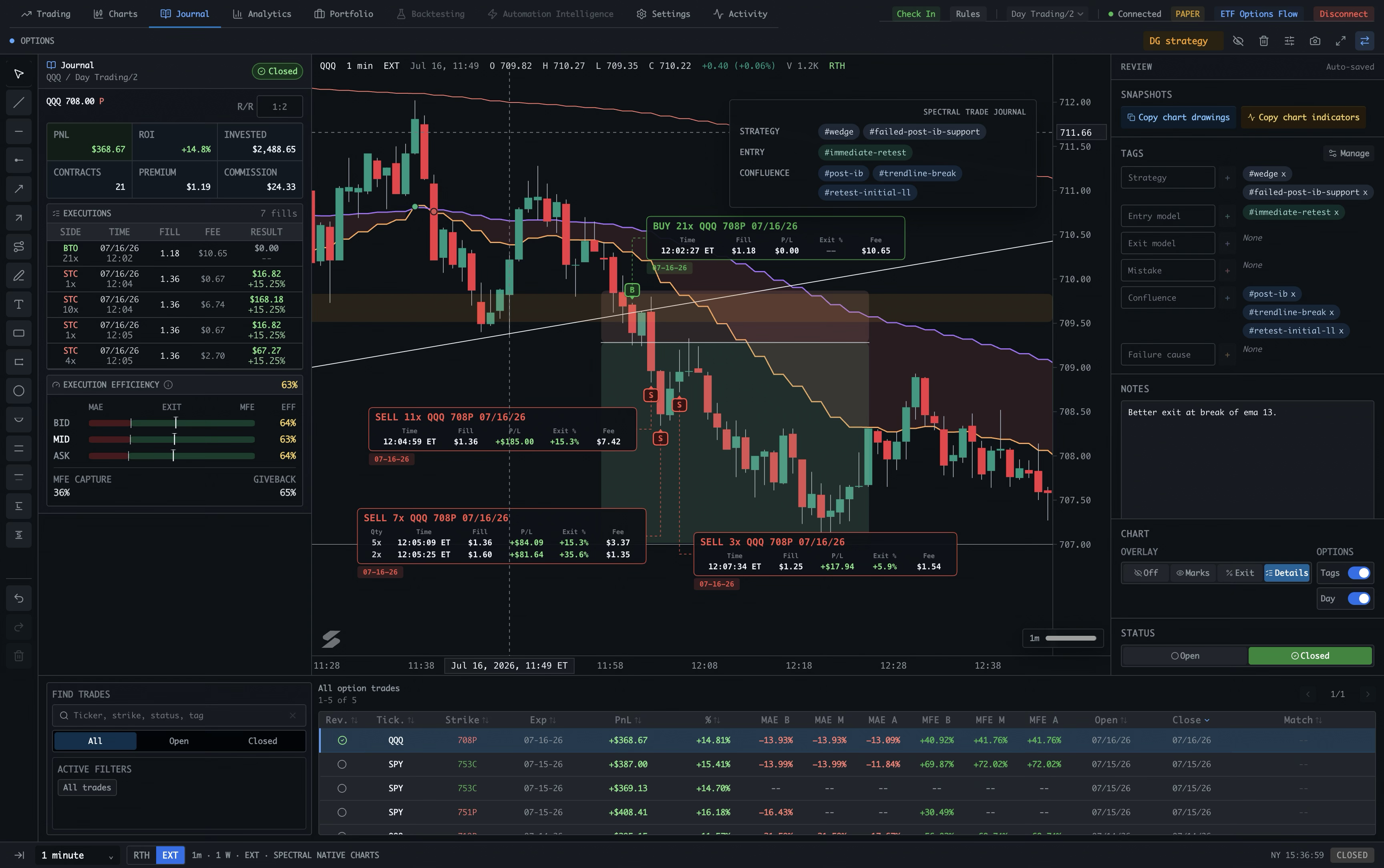
The Journal view connects the trade summary, every fill, the chart scene, structured review fields, and the searchable trade table. Use the numbered guide below to see how the pieces fit together.
- 01
Workspace navigation
Journal is the active view in the top navigation. The same workspace keeps Trading, Charts, Analytics, Portfolio, and the other views one click away.
- 02
Selected trade and status
The upper-left header identifies the account, ticker, strike, expiry, contract type, and risk/reward. The Open or Closed status shows where the journal entry is in its lifecycle.
- 03
Trade summary
The summary cards show P&L, return on investment, invested capital, contracts, average premium, and commission for the selected trade.
- 04
Execution history
Every fill is listed with side, time, fill price, fee, and result. This is the exact execution record behind the trade—not a reconstructed estimate.
- 05
Execution efficiency
MAE, MFE, and efficiency compare the trade’s adverse and favorable movement with the outcome. Capture and giveback show how much of the available move was kept.
- 06
Chart review
The chart preserves price action, copied indicators, copied drawings, entry and exit marks, and trade cards in the context where the decision happened.
- 07
Review panel
Use Snapshots, Tags, Notes, Chart controls, and Status to turn the selected trade into a complete review. The camera button creates the shareable snapshot.
- 08
Find trades
Search by ticker, strike, status, or tag, then switch between all, open, and closed trades. Selecting a result loads it into the journal workspace.
- 09
Trade table
The table is the broader record: ticker and contract, expiry, P&L and return, MAE/MFE, opened and closed times, and matching status. Use it to compare the selected trade with the rest of the history.
How to read the tables
The executions table is the fill-by-fill audit trail: side, timestamp, fill price, fee, and realized result. The lower trade table is the searchable history across trades. Its columns summarize the contract, P&L, return, MAE/MFE, open and close times, and whether the row is matched to the selected record. Select a row to load that trade into the review.
Chart drawings and journal drawings are separate.
Copying is always explicit and can be done again later. Changes in Charts affect the journal only when you actively copy the drawings or indicators over again.
No screenshots. No redrawing. No rewind.
One click recreates the relevant chart context and stores it with the trade review.