First steps
Complete the first-launch setup and make sure Spectral is ready for your workflow.
Personalize Spectral in a few minutes.
Nothing below is mandatory. We recommend reviewing these settings after your first launch so Spectral matches your preferences and account context.
- 01Settings / General
Set your general preferences
Open Settings and select the General tab. Choose your preferred calendar date format and enter a nickname.
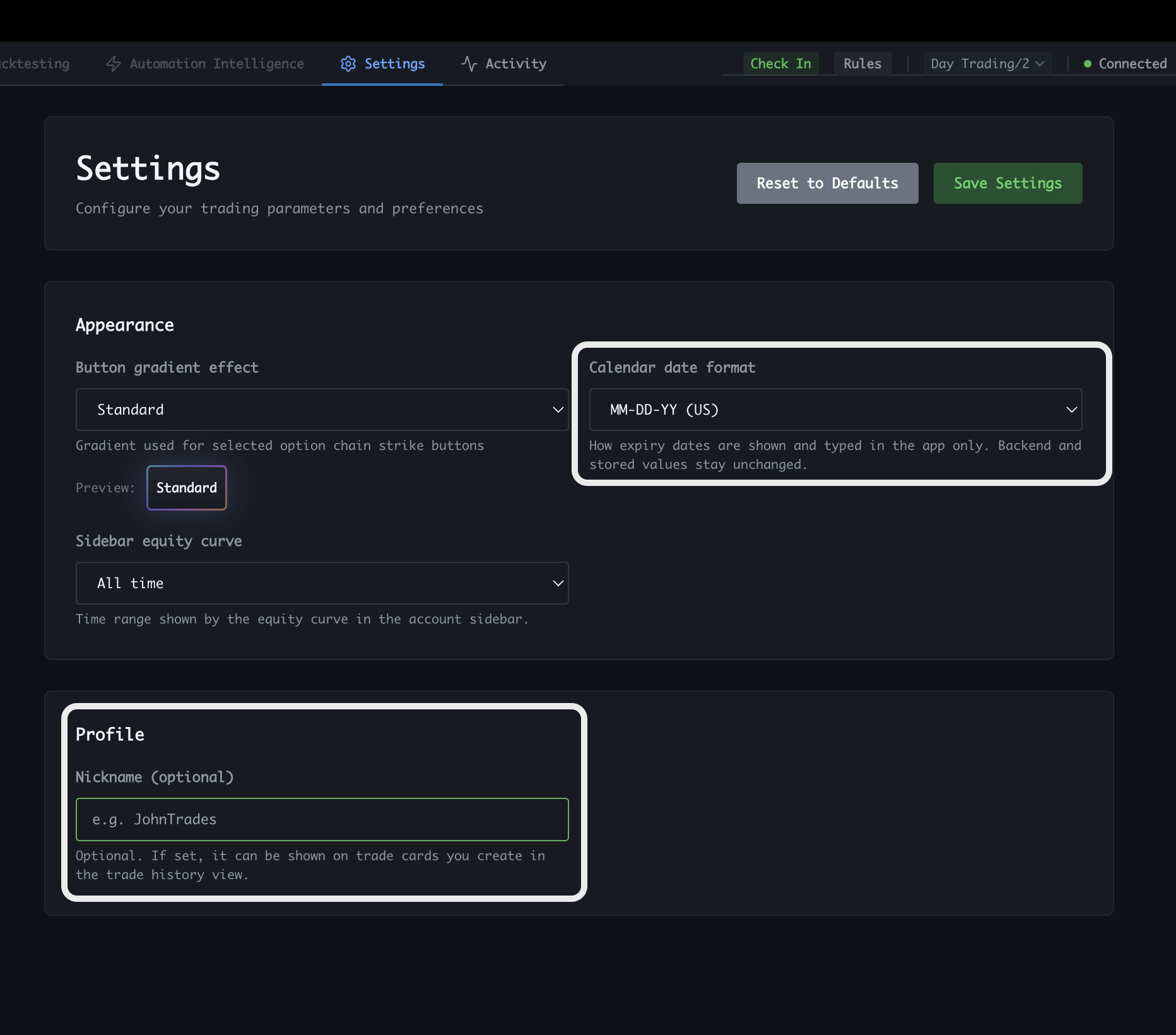
Set the date format and nickname you want to use. - 02Settings / Trading
Set your default trade sizes
Set the defaults you want Spectral to use when preparing trades. Open Stock Trading for stocks, then Option Trading for options.
Stock TradingSet the default trade size for stocks.
Option TradingSet the default trade size for options.
- 03Trading / Sidebar settings
Choose your trading defaults
From the Trading view, open the sidebar settings and select the Setup tab. Switch Stocks Auto Qty and Options Auto Qty on or off as desired. You can also switch Auto Expiry on or off.
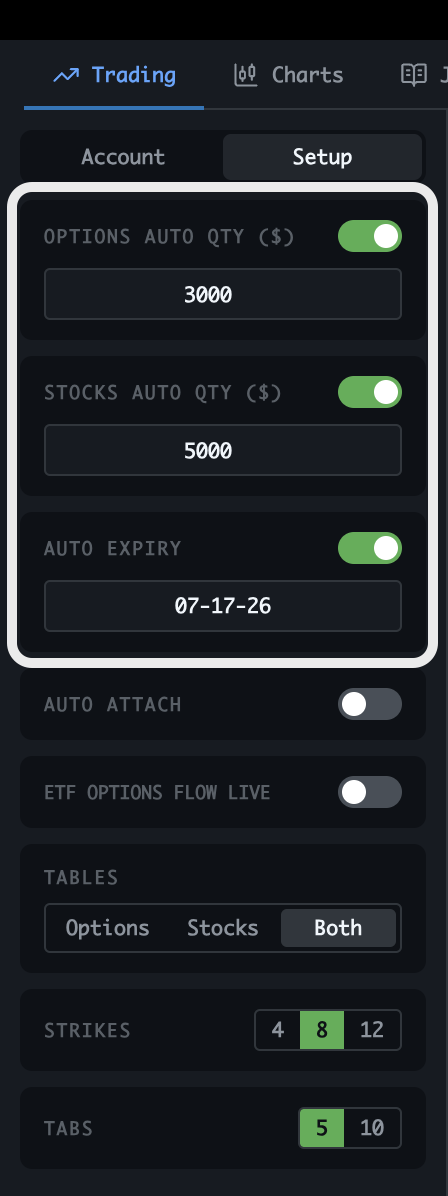
Configure the trading defaults that fit your workflow. - 04Step four / Account & License
Set up the current account
Open the Account & License tab. Set an account name for the currently logged-in account, then enter its initial balance. Spectral uses the initial balance for more useful trade analytics.
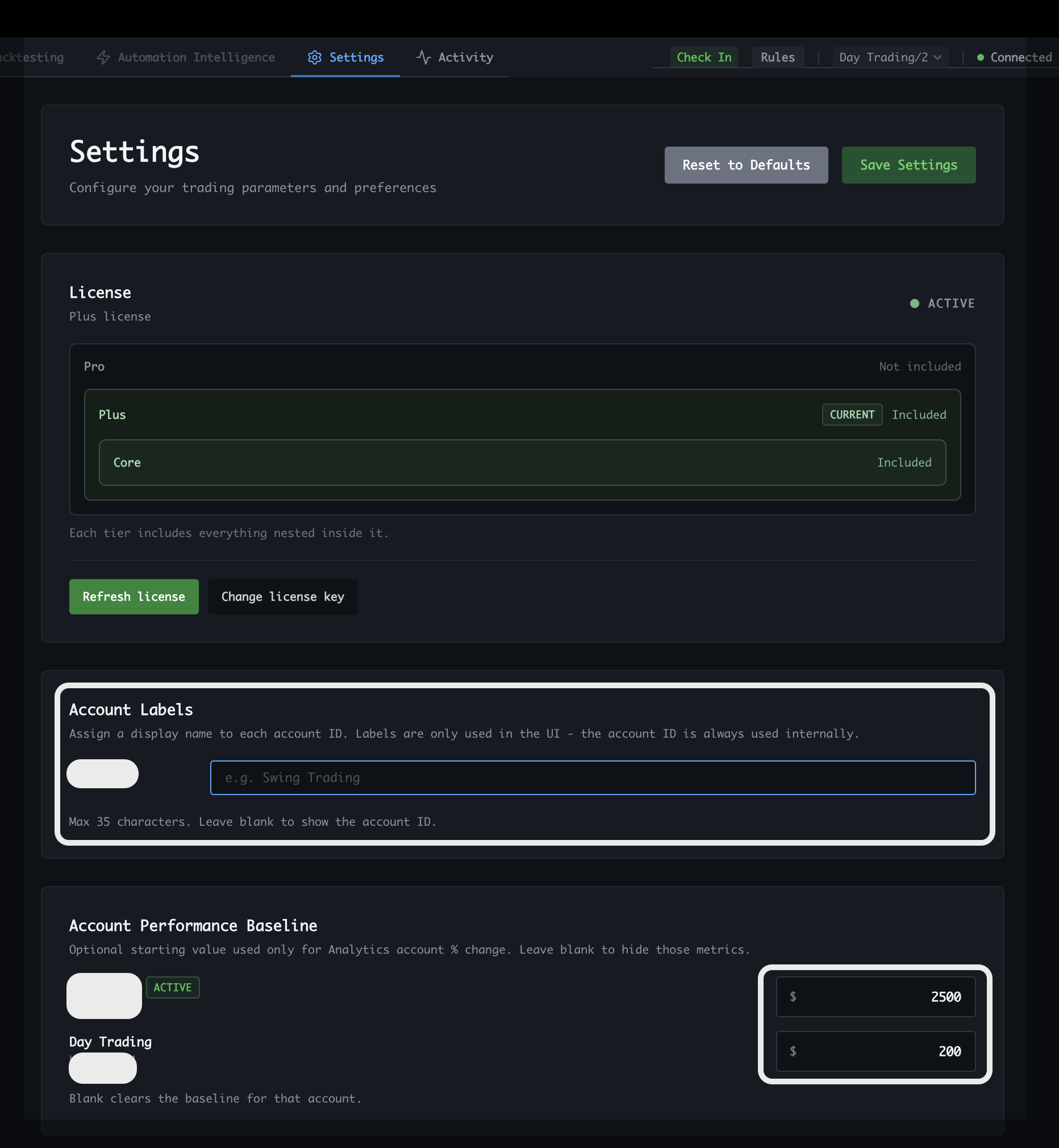
Set the name and initial balance for the current account. - 05Step five
Save your settings
Click Save Settings in the top-right corner. You can change these preferences again at any time.
- 06Optional history import
Load historical trades
If you traded before using Spectral, import your earlier IBKR history to start with a more complete record for Portfolio, Journal, and Analytics.
Open the IBKR Flex Query import guide