Installation
Install Spectral, prepare the local environment, and connect the app to Interactive Brokers.
Install Spectral in four simple steps.
If you already have an Interactive Brokers account and TWS or IB Gateway installed, getting started is straightforward.
What you need
An IBKR account
Use either your paper trading account or your live account. We recommend starting with paper trading so you can get used to Spectral first.
TWS or IB Gateway
Install one of Interactive Brokers’ desktop connection tools.
- 01Step one
Download and install Spectral
Download the current Spectral build for macOS or Windows from the beta page. On macOS, choose the Apple Silicon or Intel build, open the downloaded file, then drag Spectral into your
Get Spectral/Applicationsfolder. On Windows, run the downloaded installer and follow the setup prompts. - 02Step two
Start TWS or IB Gateway
Run the IBKR tool you installed and log in to the paper or live account you want to use.
Keep TWS or IB Gateway running while you use Spectral. - 03Step three
Enable the IBKR API
In TWS or IB Gateway, open File → Global Configuration, then choose API → Settings. Check Enable ActiveX and Socket Clients, make sure Read-Only API is unchecked, click Apply, and then click OK.
This API setup only needs to be completed once.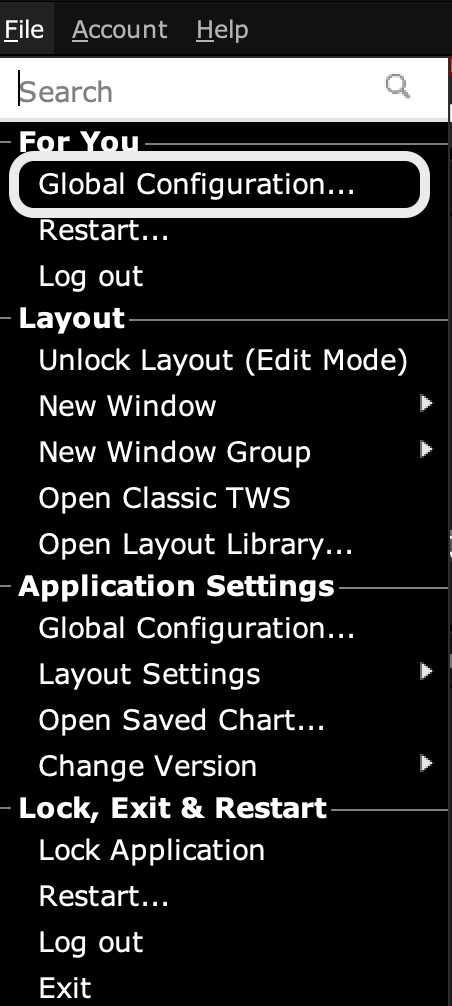
Open Global Configuration. 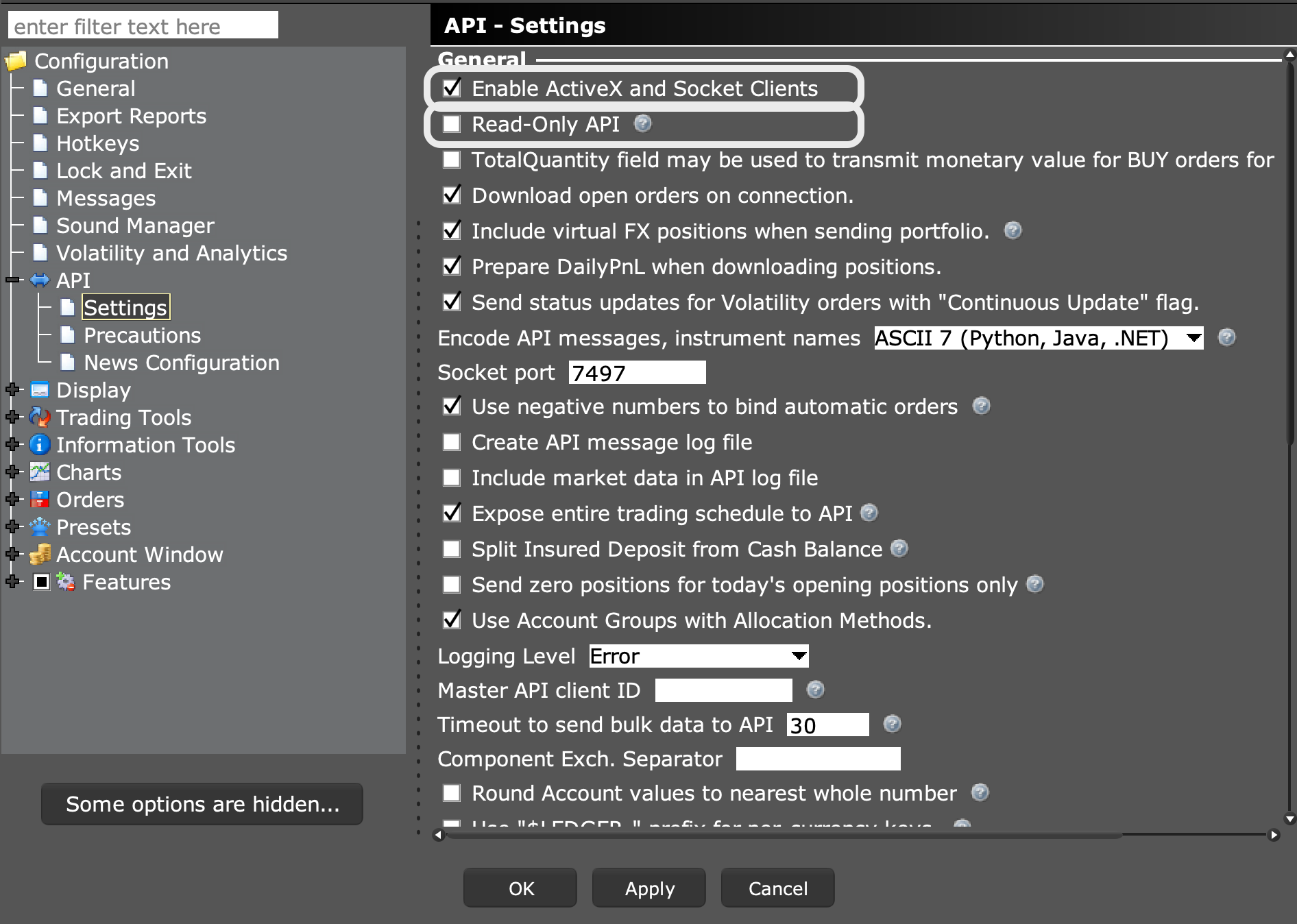
Enable the API, then apply the change. - 04Step four
Run Spectral
Open Spectral. It uses the TWS or IB Gateway session already running on your computer, so you are ready to work.